 SheetSnap
How to loop difficult piano measures in SheetSnap
Choose a short measure range, turn on Loop section, and listen at a manageable speed before expanding the passage. In SheetSnap Practice, the Start measure and End measure fields give you a precise range without dragging on the score. Repetition alone is not a check that you played the right notes.
Prepared by SheetSnap. Editorially updated ; not reviewed by a music teacher. English guide; practice suggestions are not a substitute for individual teaching.
1. Pick a small passage with a clear boundary
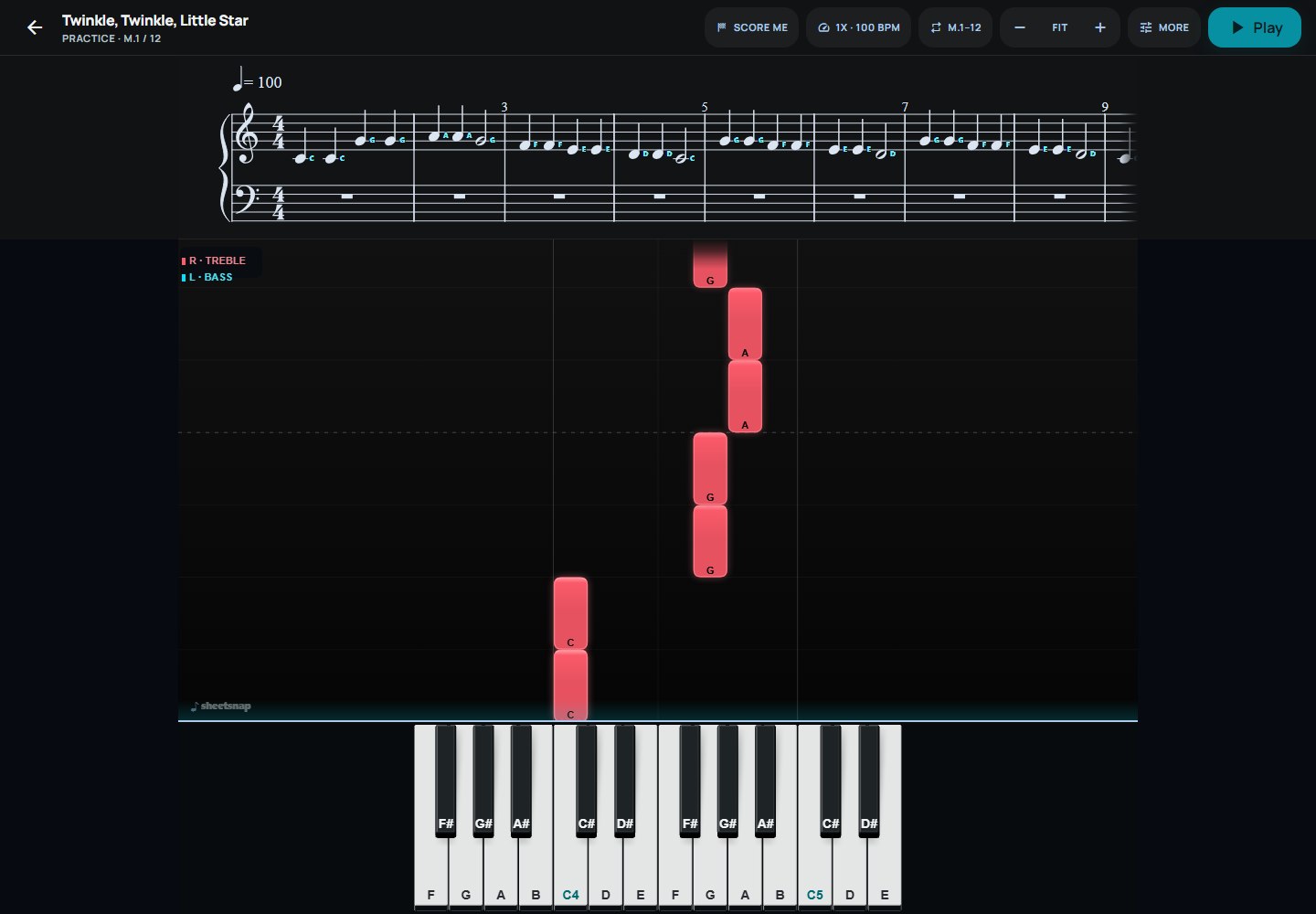
Open a starter piece in Practice and identify the measure where you lose your place. Include a little of the approach to that spot rather than restarting the whole piece. For a first control check, try measures 3 to 4 of our Twinkle, Twinkle, Little Star arrangement; the range is an example, not a claim that those measures are difficult for everyone.
2. Set the numbered range before turning on the loop
Pause playback and open Loop & range; if that control is not visible in the toolbar, find it under More. Enter 3 in Start measure and 4 in End measure, then select Apply range and turn on Loop section. Both endpoints are included. Use these fields for a precise selection: the practice score drag gesture is mouse-only and marks an approximate position.
3. Listen once, then use a slower fixed speed
Open Speed and choose a slower preset or enter Playback BPM. Press Play to hear the selected passage and check that the restart is where you intended. If Wait for me or Speed training is enabled, turn it off for this fixed-tempo listening check. A loop can repeat while you listen; it does not require a MIDI keyboard and does not grade your playing.
4. Check one difficulty rather than counting repetitions
Choose something specific to compare with the score: a repeated pitch, a change of hand, a rest or the note that follows a leap. Pause between attempts when you need to look again. Keep the range short enough to remember what happened on the last attempt. No loop count proves technique, expression or readiness to play the full piece.
5. Put the passage back into its surroundings
After you can follow the small range, move Start measure earlier or End measure later and select Apply range again. Test the join into and out of the passage instead of only its middle. When you want a full run, select Reset to whole piece and turn off Loop section. A fixed-tempo accuracy challenge is a different mode and requires loop, wait and speed training to be off.
Keep the browser session practical
On a phone, use the numbered measure fields instead of trying the desktop drag gesture. Start audio with the Play control and keep the practice tab in the foreground while checking the loop. If the selected passage has no playable notes, choose another range. Keep your source file outside the browser: the library is local to this browser and device, not automatically synchronized by signing in.
Try it with a real score
Try a short Twinkle practice loopThe free starter path needs no purchase. Your own imports require eligible Pro access; the founding beta is subject to its displayed capacity and timeframe.
Related questions
Keep exploring
- Gradually increase piano practice speed in SheetSnap
- Piano time signatures: 4/4, 3/8 and 6/8
- Using a MIDI piano keyboard in a web browser
Choose your first songs or read the import guide.