 SheetSnap
Gradually increase piano practice speed in SheetSnap
Start with a small section and a tempo you can follow, then increase speed deliberately. SheetSnap offers manual BPM changes and Speed training that advances after completed loops or successful MIDI passes. Those are different checks: a completed playback loop says nothing about the accuracy of your playing.
Prepared by SheetSnap. Editorially updated ; not reviewed by a music teacher. English guide; practice suggestions are not a substitute for individual teaching.
1. Decide what 1x means for this session
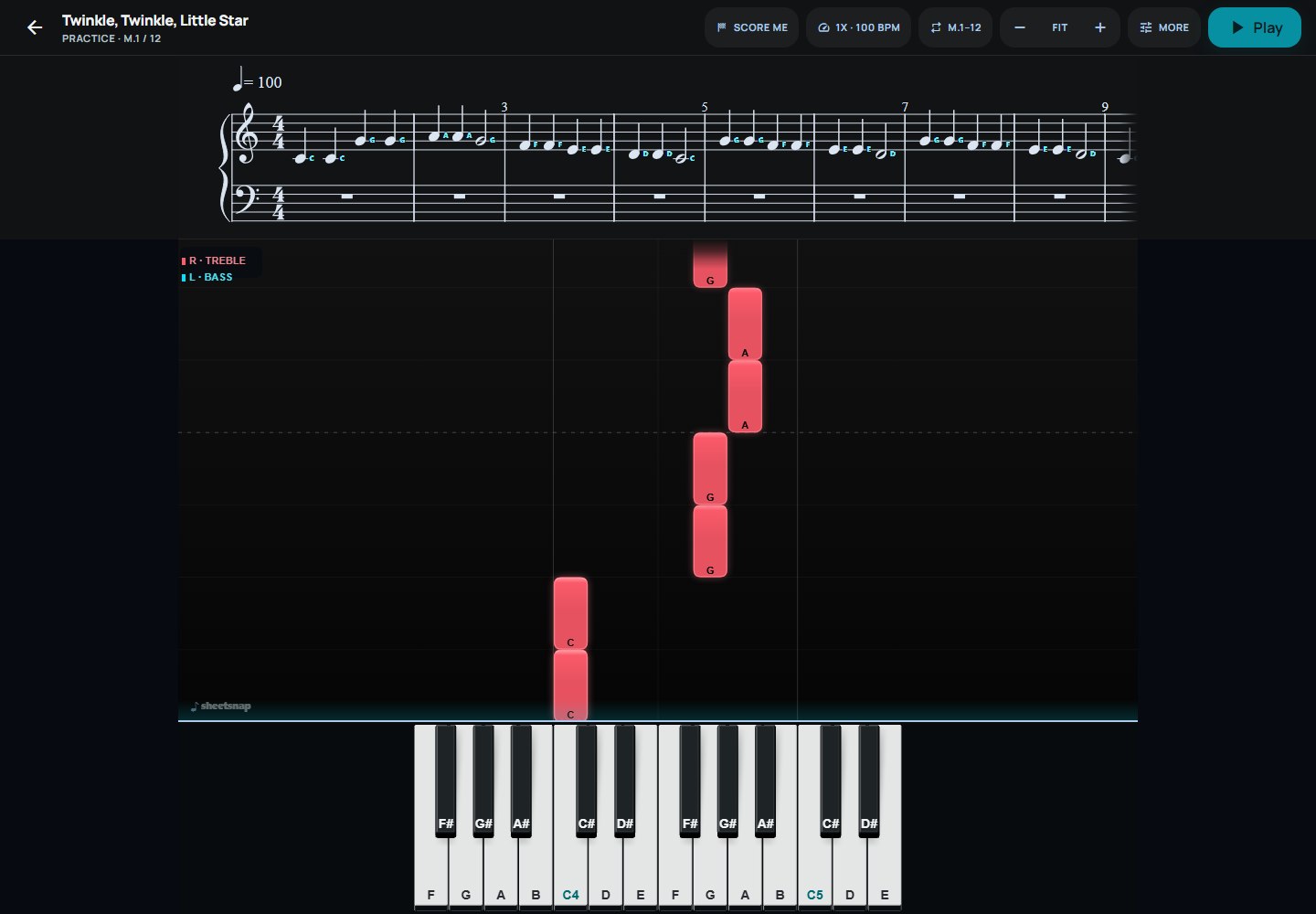
Open Speed in Practice and check Playback BPM before setting a progression. The Speed progression settings show the current reference as 1x = a BPM value; do not assume it is always the score's original marking. If 1x is 100 BPM, 0.50x is 50 BPM and 0.75x is 75 BPM. You can also change BPM manually and leave automatic training off.
2. Select the section and choose the starting settings
Use Loop & range to select a short passage with playable notes, then open More, choose All practice settings and enable Speed training. It turns looping on and leaves the separate accuracy-challenge mode off. Start with 0.50 in Start speed (x), 1.00 in Target speed (x), Add multiplier (+0.10x), an Increase (x) of 0.10, and 2 Passes per increase. Select Apply progression. These are example settings to adjust, not a required learning schedule.
3. Understand additive and proportional increases
With Add multiplier and an increase of 0.10, a 0.50x start becomes 0.60x, then 0.70x. Increase proportionally (+10%) means something else: 0.50x becomes 0.55x, then 0.605x. Choose the increment type first and check the numeric field before applying it. The target caps the progression; reaching it means the speed setting was reached, not that the piece was mastered.
4. Choose what should qualify a pass
Completed loops advances after the configured number of complete playback passes, so it can be used for listening without hardware. Successful MIDI passes instead requires a connected MIDI keyboard, a MIDI or MusicXML score, Wait for me off, and microphone listening off. Set Required accuracy (%) and, if useful, Consecutive successes. That accuracy is a note-and-timing score, not a teacher's assessment of fingering, tension or musical expression.
5. Hold, restart or return to manual speed
Press Play and watch the displayed multiplier and next-step count. If an increase arrives before you are comfortable, use Hold this speed; Resume increases lets progression advance again. Restart progression returns to your configured starting speed. You may also turn Speed training off and make manual BPM changes. A pause or interrupted pass is not a completed pass, so do not expect every press of Play to increase the speed.
Separate browser limits from practice decisions
Do not buy a keyboard on the assumption that every browser can connect it: Web MIDI requires browser support and permission. If the connection is unavailable, use Completed loops or manual tempo changes, not a promised microphone substitute for successful-pass grading. Try the starter on the actual device first and keep it in the foreground. If the app rejects a target BPM, reduce the target rather than expecting every multiplier to work with every base tempo.
Try it with a real score
Set up speed training on TwinkleThe free starter path needs no purchase. Your own imports require eligible Pro access; the founding beta is subject to its displayed capacity and timeframe.
Source references
Related questions
Can a practice loop automatically get faster?
Yes. Speed training can increase a selected loop after completed passes or qualifying successful MIDI passes. Set a starting speed, target, increment and pass count. Accuracy-based progression requires supported live MIDI input and the documented practice settings; it is not a claim of musical mastery.
Keep exploring
- How to loop difficult piano measures in SheetSnap
- Using a MIDI piano keyboard in a web browser
- MusicXML, MIDI or PDF: which file works for piano practice?
Choose your first songs or read the import guide.